
If you haven't created an account yet, please refer to our guide on How to create an account before proceeding.
To begin, click on your name in the upper-right corner of the website and select "Account" from the drop-down menu.
Two types of shipping services
KIVVI offers two types of mail-forwarding services:
- Ship My Parcel: Choose this option if you are purchasing items from an online store yourself and using KIVVI’s US warehouse address at checkout.
- Buy for me: Choose this option if you want KIVVI to place an order with the store on your behalf.
Ship my parcel
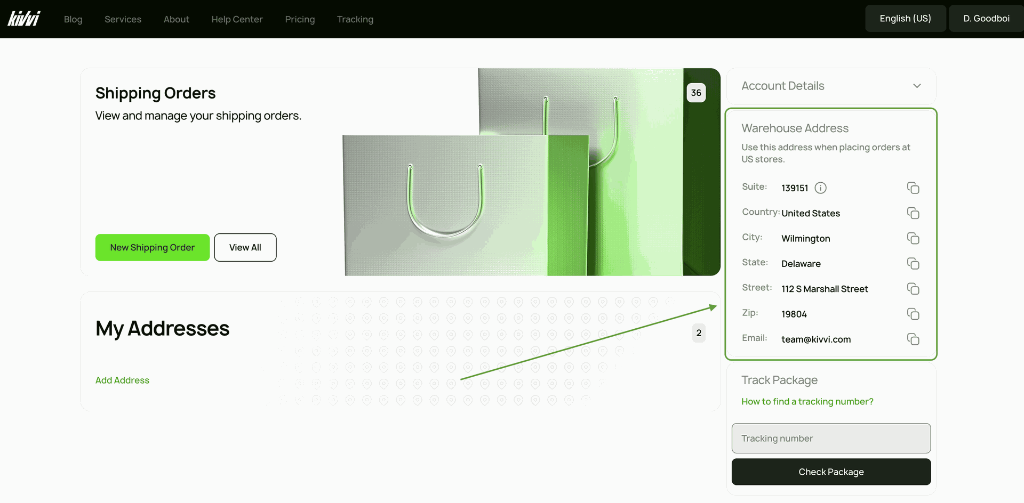
Locate the "Warehouse Address" card in your account dashboard. Copy this address and use it as the shipping address when placing your order with any external e-commerce service.
Register your incoming package
Once you have placed your external order and received a tracking number from the merchant, register the delivery with KIVVI.
On the main portal, go to the "Shipping Order" card and click "New Shipping Order".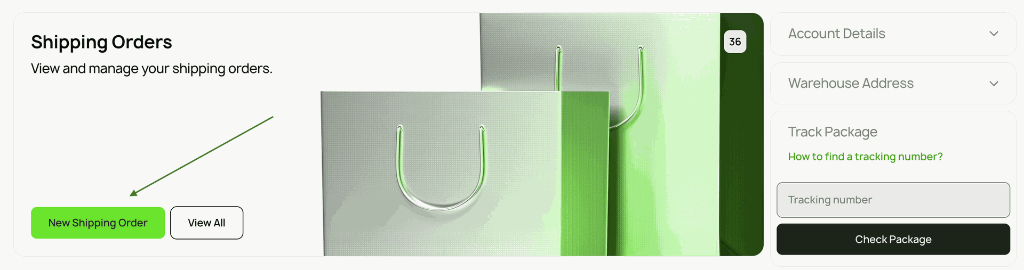
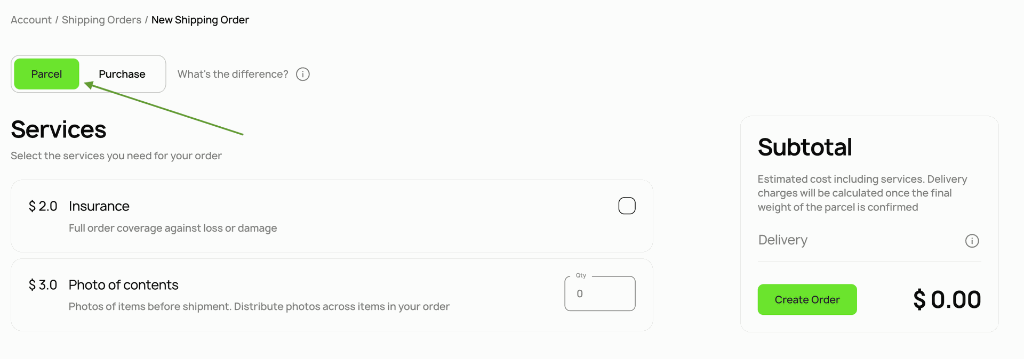
Ensure the "Ship My Package" tab is selected.
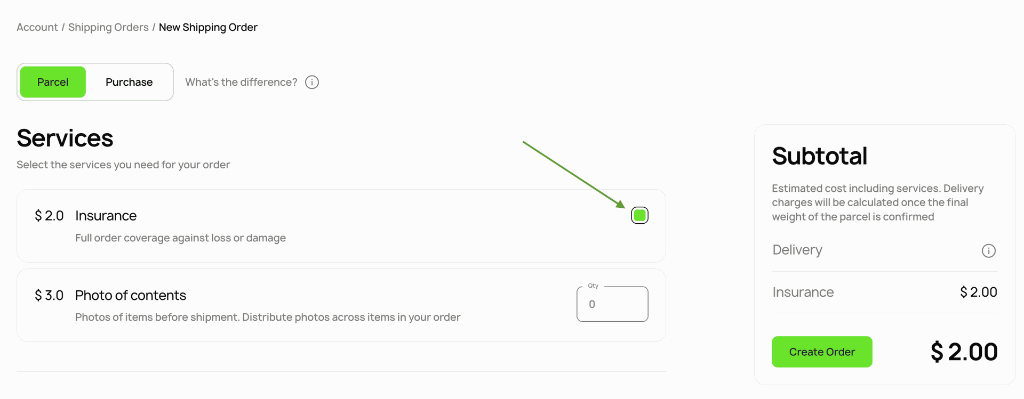
Insurance
Select "Insurance". If your package is lost or damaged in transit, we’ll reimburse its full value.
Item photos
Select "Item photos" if you would like us to take photos of your items before shipment.
One service includes 3 photos. You can distribute these photos across items in your order.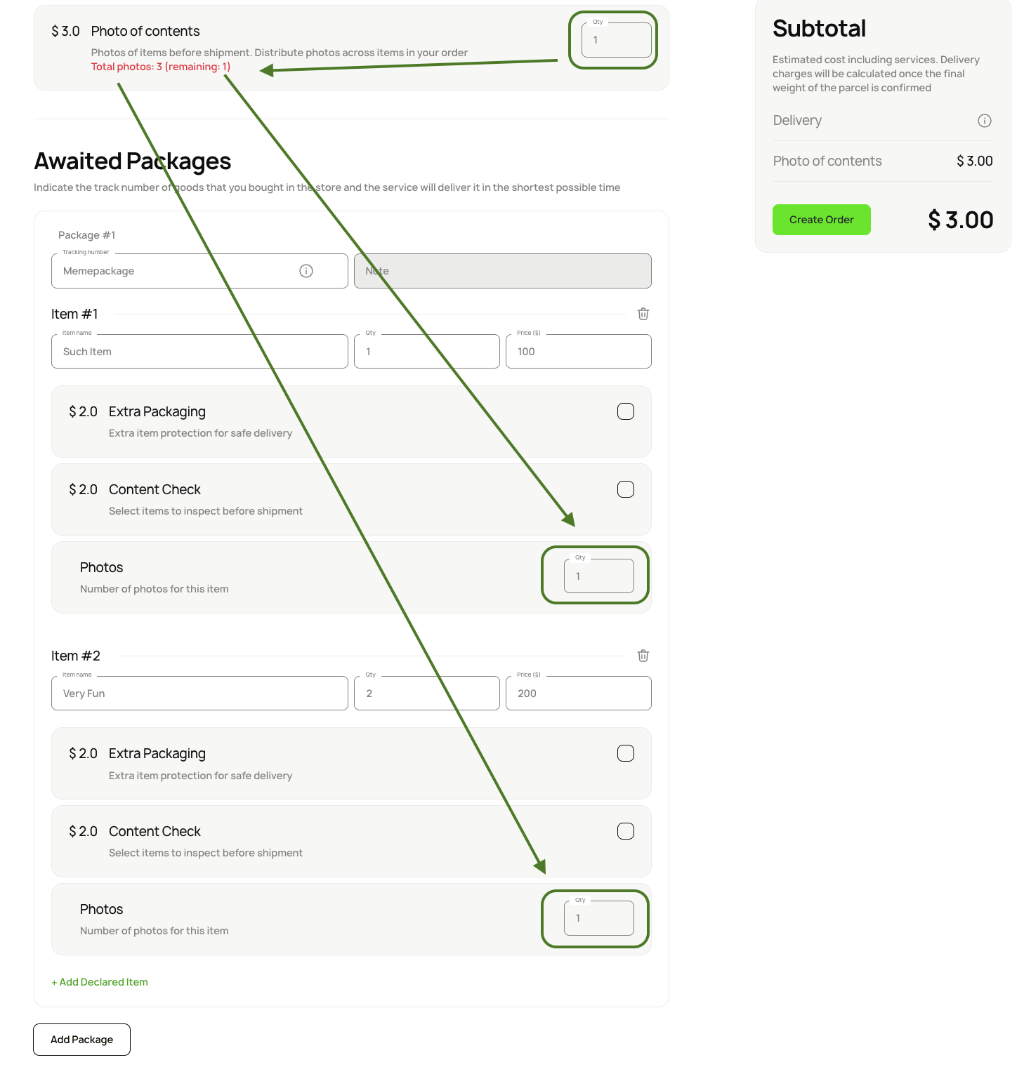
Once your package has been processed, we’ll email the photos to you and add them to the shipment page in your account.
If anything is wrong with an item, we will put the package aside and wait for your resolution on further actions.
Add expected package details
Enter the tracking number for each package you expect to arrive at our warehouse.
List the items inside each package and provide the following information:
- item name;
- quantity;
- price per item.
We need this information for customs clearance.
To add an item, press the "+ Add Item" button.
Extra packaging
Select "Extra Packaging" if you would like additional protective packaging for safe delivery.
Item inspection
Select "Item Inspection" if you would like us to inspect items before shipment.
We’ll inspect the contents and email you a written report once the package has been processed. The report will also be added to the shipment page in your account.
If we find an issue with an item, we’ll set the package aside and contact you to confirm the next steps.
Merge packages
If several packages arrive separately and you want them shipped together in one order, make sure to register them together.
To do so, press the "Add Package" button.
Shipping details
Select the order recipient. The default delivery address you provided will be suggested. You can adjust the delivery service and delivery method for this order.
Comments
Leave a comment about your order if needed.
Subtotal
Until the exact package weight is known, your account will display the preliminary cost of the selected services.
The final invoice will be issued after:
- The package is weighed.
- The items go through customs clearance.
Create order
Click "Create Order" to finalize the order. Once the shipment is created, we’ll wait for the listed package to arrive at our warehouse.
Payment
The final invoice will be issued after the package is received, processed, and cleared through customs.
Buy for me
On the main portal, go to the "Shipping Order" card and click "New Shipping Order".
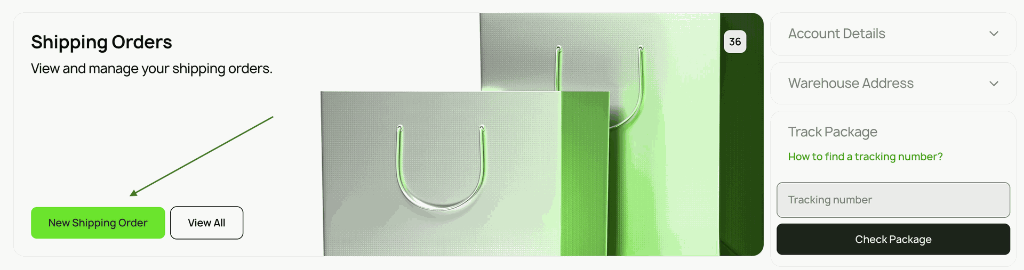
Ensure the "Buy for Me" tab is selected.
Insurance
Select "Insurance". If your package is lost or damaged in transit, we’ll reimburse its full value.

Item photos
Select "Item photos" if you would like to receive photos of your items before shipping. One service includes 3 photos. You can distribute them across the items in your order.
Once your package has been processed, we’ll email the photos to you and add them to the shipment page in your account.
If we find an issue with an item, we will put the package aside and wait for your resolution on further actions.
Items you'd like us to buy
Provide the following information for each item:
- item name;
- quantity;
- price per item;
- link to the item you want us to buy;
- additional link to the same item from another store in case the primary link is unavailable;
- size and color of the item;
- promo code, if available.
To add an item, press the "+ Add Item" button.
Extra packaging
Select Extra Packaging if you would like additional protective packaging for safe delivery.
Item inspection
Select "Item Inspection" if you would like us to inspect items before shipment.
We’ll inspect the contents and email you a written report once the package has been processed. The report will also be added to the shipment page in your account.
If we find an issue with an item, we’ll set the package aside and contact you to confirm the next steps.
Shipping details
Select the order recipient. The default delivery address you provided will be suggested. You can adjust the delivery service and delivery method for this order.
Comments
Leave a comment about your order if needed.
Subtotal
Until the exact package weight is known, your account will display the preliminary cost of the selected services.
The final invoice will be issued after:
- The package is weighed.
- The items go through customs clearance.
Create order
Click "Create Order" to finalize the order.
Order review and payment
A manager will review your order and check item availability. If the items are available, KIVVI will prepare a quote valid for 3 days.
You will receive an email notification, and a "Pay now" button will appear in your account. You can pay directly through your account.
If payment is not received within 3 days, the order will be canceled automatically.

Support
If you have any questions, our support team is always ready to help.